A guest checks Google, sees that your cafe is open, and follows the order link. The website says something different, and the checkout offers a pickup time after the kitchen closes. Each screen might look reasonable on its own. Together, they leave the guest guessing.
With late-autumn events and year-end holidays ahead, October is a useful time for Canadian restaurant and cafe owners to check the whole journey. The goal is simple: a guest should be able to tell when you are open, when they can order, and when they can collect their food.
1. Decide the service schedule before editing any screens
Start with one short plan for each location and each affected date. Confirm it with the person running that shift. A dining room, espresso bar and delivery operation may have different closing times.
Write down:
- The full date and location.
- Customer-facing opening and closing times.
- Pickup and delivery windows, if offered.
- The final time for placing an order, allowing for preparation.
- Any limited menu or unavailable service.
- Who will update each channel and who will check it.
Use local time and include the year in your working plan. Avoid copying another location's schedule without checking. Decide your own operating dates rather than assuming every Canadian business follows the same holiday calendar.
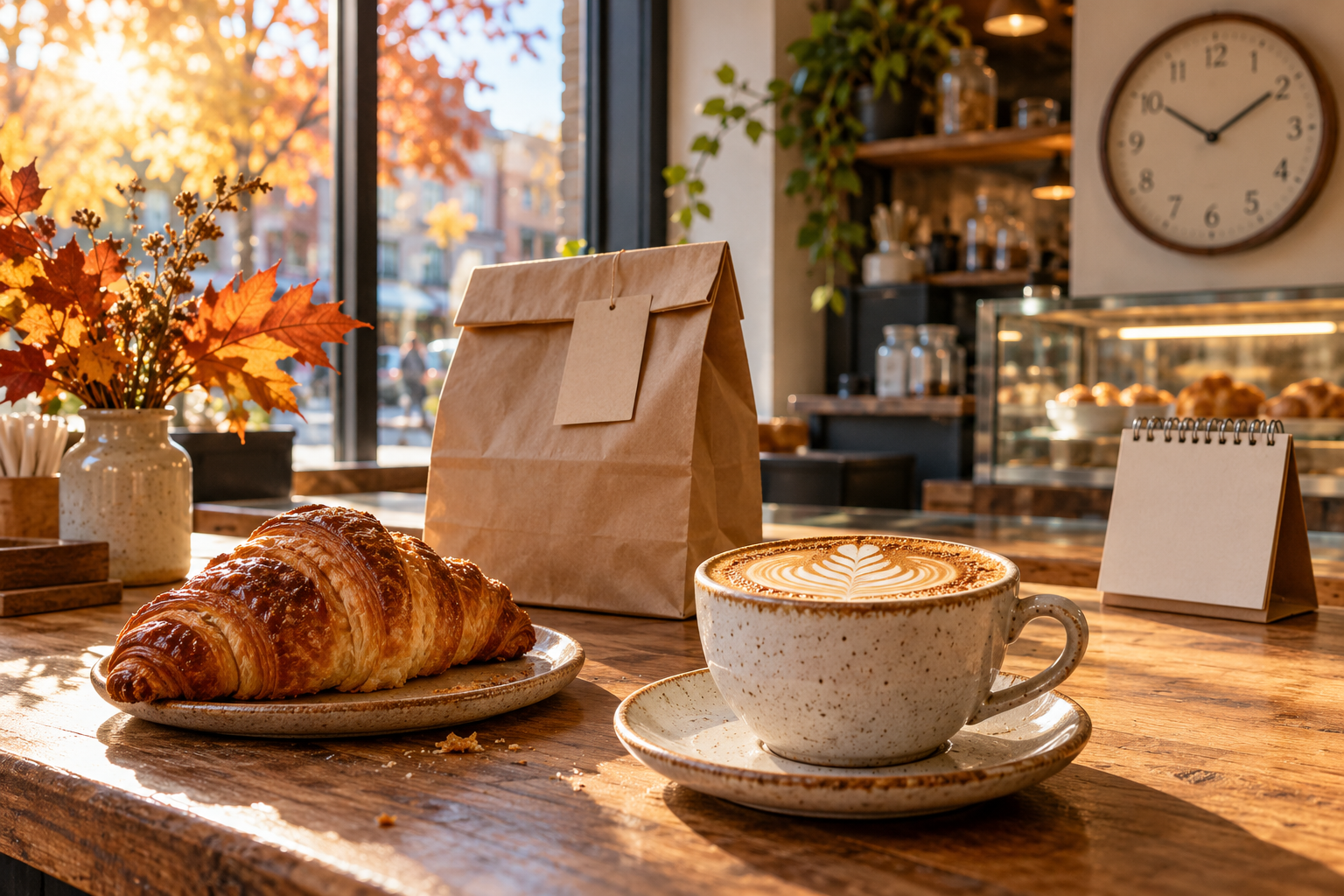
Illustrative example: A cafe plans to welcome guests from 9 a.m. to 3 p.m. on a special date. Its last online pickup is 2:45 p.m., and the team plans a 2:15 p.m. order cutoff to allow preparation. Those are three different times with three different jobs. Confirm that the ordering system can actually enforce the plan before announcing it.
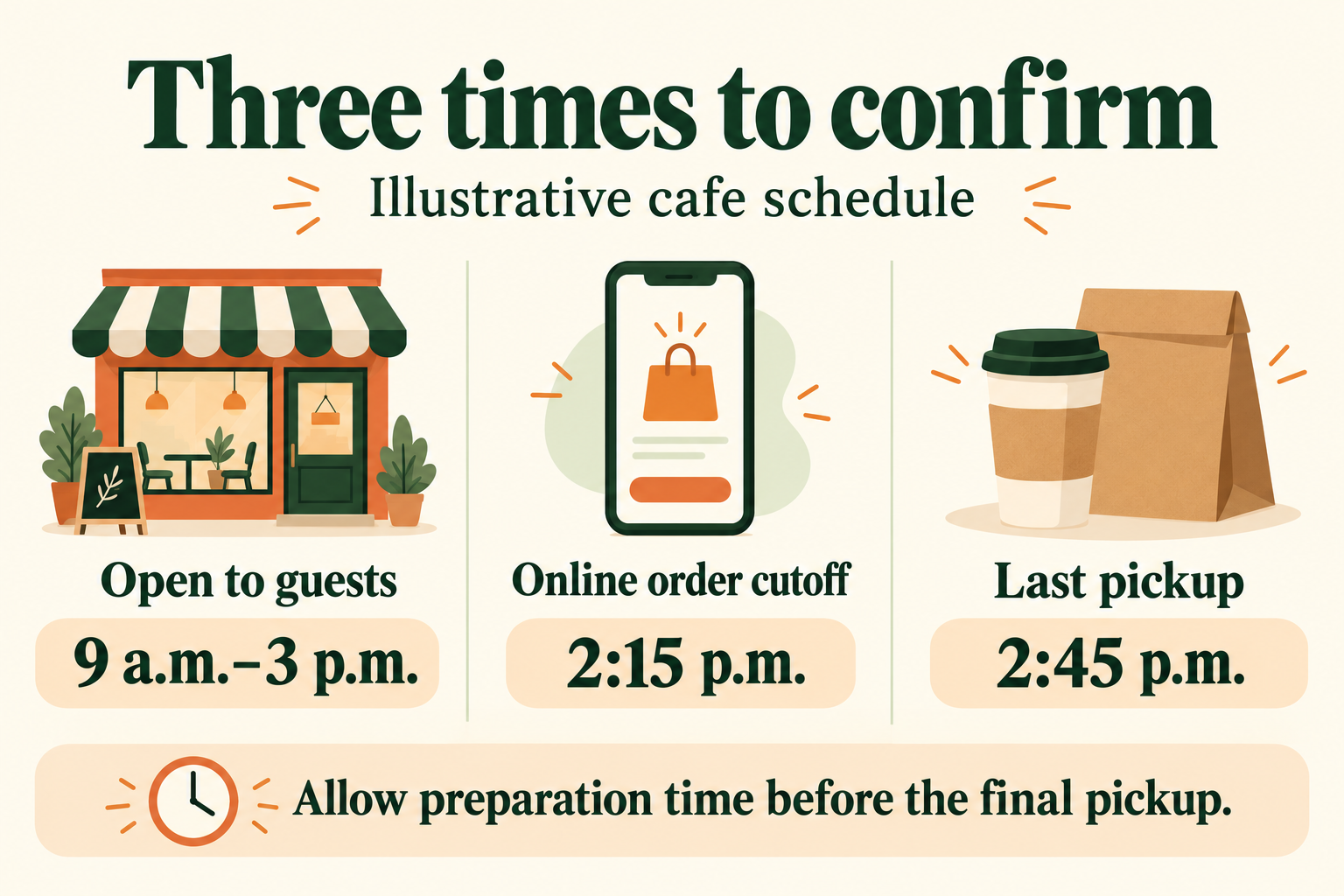
Illustrative schedule: allow preparation time before the final pickup.
2. Add dated exceptions in Google Business Profile
Google's Special hours guidance distinguishes short-term exceptions from your normal weekly schedule. In your Business Profile, select Edit profile → Hours → Special hours, choose the date, enter the opening periods or mark it closed, and save. Google recommends confirming official holiday hours even when they stay the same.
Special hours require the profile to be set to “Open with main hours.” Google's guidance uses Special hours for temporary adjustments or closures of up to six consecutive days; for seven or more days, or an unknown duration, it directs businesses to the Temporarily closed status.
If pickup or delivery has its own recurring schedule, check Google's More hours guidance. These service-specific hours are separate from the main schedule, and regular hours must be set first. Review what your profile offers and verify how the affected date appears publicly.
While you are there, test the destination of your ordering button. Our Google Business Profile ordering-link guide covers that separate step.
3. Match the website message to checkout availability
Put a short, dated notice near the hours and the Order Online button. A social post can help announce a change, but guests arriving directly from search should also find the answer on your site.
Illustrative notice: “Special hours for [date]: open 9 a.m.–3 p.m. Last pickup 2:45 p.m.; online orders close at 2:15 p.m. Regular hours resume [date].”
Replace every placeholder before posting. If delivery closes earlier, say so explicitly. For a full closure, state when service resumes.
Next, inspect the ordering schedule itself. A banner does not prevent checkout from accepting an unavailable time. Check date-specific closures, preparation time, advance ordering and the latest collection slot using the settings your provider supports. If an exception cannot be configured, ask the provider how to prevent orders for that period before promoting it.
Menuro's online ordering supports pickup, delivery and dine-in choices, and its restaurant website service includes hours and ordering. Ask the team how holiday exceptions work for your location and setup; do not assume a website edit automatically updates Google or another ordering channel.
4. Walk through the journey as a guest
Have someone other than the editor check the public pages on a phone. Use the same links a customer would use, starting from Google or your website.
- Confirm the correct location and dated hours.
- Tap Order Online and check where it leads.
- Select the affected date, if advance ordering is available.
- Inspect the earliest and latest pickup choices.
- Confirm closed dates and unavailable services cannot be selected.
- Check whether the next available date is clear.
You can inspect availability without submitting a paid order. If a complete test order is needed, coordinate it with staff and your provider so it does not become an unexpected kitchen ticket.
For restaurants open across midnight, check both calendar dates. For multiple locations, repeat the walkthrough at each one. Our online ordering menu checklist can help with the item and checkout details beyond hours.
5. Give staff the same answer, then remove old notices
Keep the approved schedule where the shift team can find it. Include the last order time, last pickup time and a simple response for callers. Check any other channels you use, such as delivery marketplaces, reservation pages, door signage and pinned social posts.
Assign a follow-up check after the special date. Remove expired banners, confirm the next day's ordering availability and make sure the regular schedule still matches service. Keep the working plan for your next event, but review each date afresh.
Your next step: check one date from search to pickup
Choose the next date when service will differ. Agree on the schedule, update each customer-facing channel, and ask a colleague to verify the whole path on a phone. The useful result is a consistent answer at every step, including the final collection time.
Want help connecting your restaurant website and direct ordering? Book a Menuro demo and bring one upcoming special-hours scenario. Ask the team to show how your location's website message and ordering availability would be handled.
Sources and editorial notes
Primary sources checked October 18, 2026: Google: Special hours, Google: More hours, Menuro online ordering and Menuro restaurant websites. The workflow and sample schedules above are practical editorial suggestions; examples are illustrative, not client results. Images are original AI-generated editorial illustrations and do not depict a Menuro client.