A customer searches for your café, checks the menu, and decides to order lunch. Where does the next tap take them?
For a restaurant in Vancouver, Burnaby, Surrey, or elsewhere in Canada, that path is worth checking. Your Google Business Profile can help people reach an ordering page, but an outdated link or the wrong location can make a simple pickup order frustrating.
Here is how to add your restaurant’s direct ordering link, choose a preferred option where available, and check that customers can actually use it.
Can Canadian restaurants add ordering links on Google?
Google’s Canadian restaurant guide lists Canada among the countries where restaurants can work with online ordering providers to display takeout and delivery options.
Google also documents custom ordering links for businesses outside the US. These send customers to a website where they can order. Adding your own link does not, by itself, establish a special provider integration or put your checkout inside Google.
The exact presentation varies by region and profile. Customers may see an ordering button or a separate ordering link. Use the controls available on your own profile rather than expecting every screenshot in an online tutorial to match.
1. Get the right ordering URL ready
Start with a verified Business Profile and a working ordering page. Google’s business-link guidelines require an ordering link to let customers complete an order. A social profile, messaging link, app-store listing, or shortened URL is not suitable.
Use a page for the specific restaurant location. If you run cafés in Vancouver and Richmond, each profile should take people to the matching location’s ordering page, rather than a general homepage that leaves them guessing.
Before copying the URL, open it on your phone and check:
- The restaurant name and pickup address are obvious.
- Current menu items and prices are visible.
- Customers can select the intended pickup or delivery option.
- Required choices, such as drink size or milk selection, work.
- The checkout clearly shows the total and fulfilment details.
If you are setting up direct ordering for the first time, build this customer journey before promoting the link. Menuro’s online ordering solution is one option for accepting orders through your restaurant’s website and app.
2. Add the link to your Business Profile
Sign in to the Google account that manages the restaurant, then open its Business Profile.
Google’s current instructions for adding business links are:
- In Google Search, open the food-ordering or pickup-and-delivery controls. In Google Maps, start from the profile-editing controls and choose the relevant transaction type.
- Choose the option to add a link, or another link if one already exists.
- Paste your restaurant’s ordering URL.
- Save the change.
In the food-ordering settings, make sure the switch for accepting orders on the profile is enabled. Turning it off hides your own ordering links as well as third-party ordering options.
After saving, check the public profile in Search and Maps. A saved edit and a working customer-facing link are separate things to verify.
3. Set your preferred ordering option
Where the option is available, open the food-ordering settings, choose your direct ordering link, and mark it as preferred. Google allows separate preferences for pickup and delivery when the selected provider or link supports those services. Save your choices.
For example, a café might prefer its own website for pickup while using a different delivery arrangement. Choose the options your team can reliably fulfil. Google explains these controls in its online ordering help.
Then inspect the public result. Do not assume that selecting a preference makes other providers disappear.
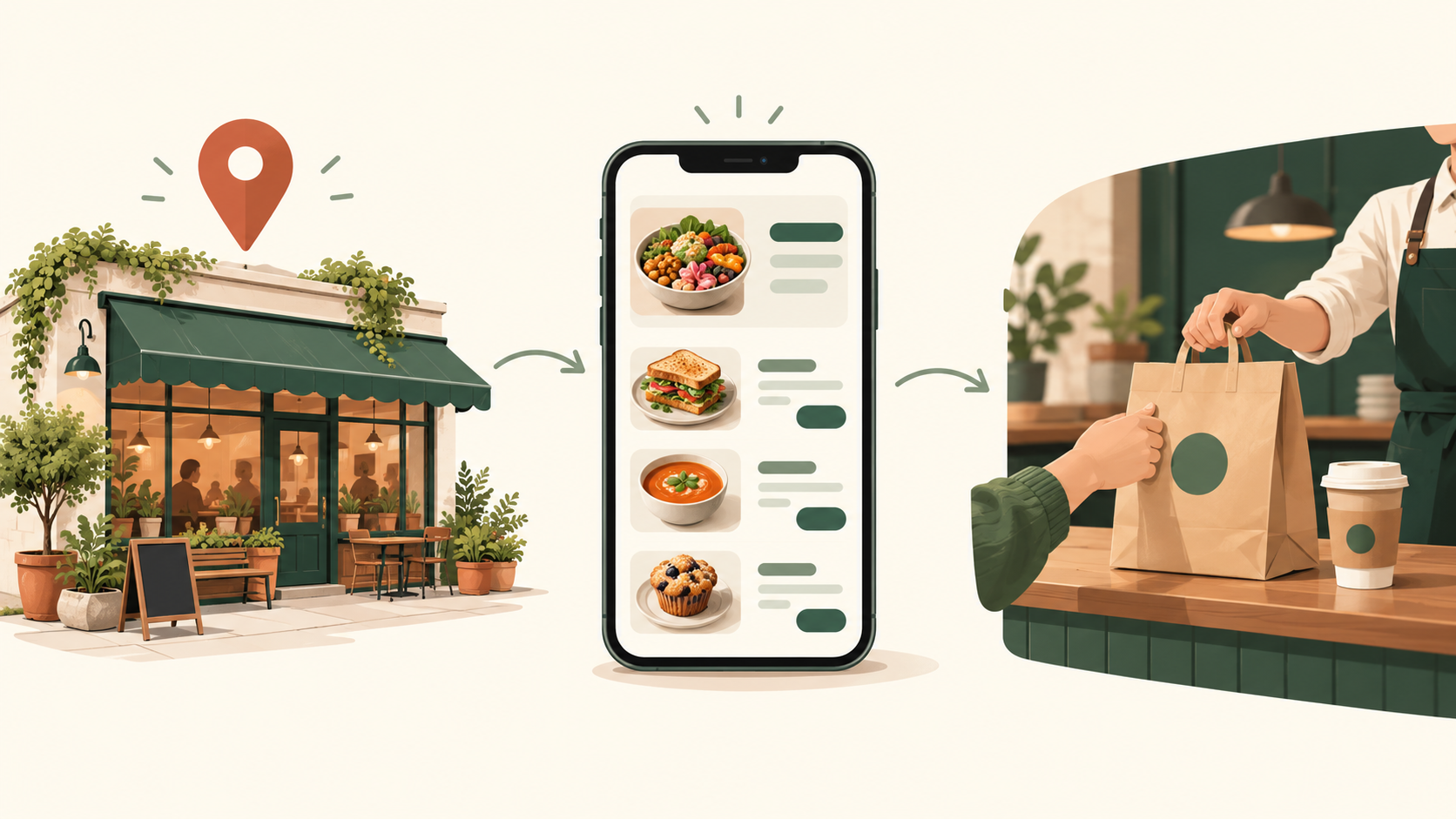
Check the whole journey, from the public listing to the pickup handoff.
4. Keep your menu link and ordering link clear
Someone browsing dinner options needs a readable menu. Someone ready to buy needs a checkout. Give each link the right destination.
Google lets restaurants manage a menu URL and, where available, edit menu sections, dishes, descriptions, and prices. Use the menu editor guidance to update these separately from food-ordering settings.
For the menu URL, use your restaurant’s current, representative menu. Google’s business representation guidelines say menu URLs must not be direct links to third-party ordering or delivery services.
A practical setup is a menu page on your own website, with an easy-to-find order button, plus a dedicated ordering link in the profile’s food-ordering section. Check both whenever you change your menu.
5. Check hours and the pickup handoff
An ordering link is only useful if the information around it is accurate. If your dining room closes at 9 p.m. but the kitchen stops accepting pickup orders earlier, make that clear on the ordering page.
Google supports special hours for holidays and other exceptions, plus additional service hours for activities such as takeout and delivery. Follow its business-hours guidance when those schedules differ.
For a busy Vancouver café, also check the details a first-time customer needs: which entrance to use, where to collect the order, and how they will know it is ready. A clear collection instruction can prevent a customer waiting in the wrong queue.
6. Troubleshoot a missing or rejected link
If the ordering link does not appear, work through these checks:
- Profile verification: Confirm the restaurant’s profile is verified.
- Ordering settings: Check that accepting orders is still enabled.
- Destination: Open the exact URL and confirm it reaches the correct location and a functioning ordering page.
- Duplicate domain: Check whether that domain is already represented by an existing link.
- Accessibility: Ask your website provider whether Google can reach the page to verify it.
These are based on Google’s link eligibility and verification rules. A page loading for you does not always mean Google’s verification tools can access it.
If you want to remove one third-party provider, use the controls for that provider rather than disabling all ordering. Google’s removal guidance says providers must process removal requests within five business days and provides a route to report a failure to do so.
7. Measure completed orders alongside profile activity
Google Business Profile performance can show website clicks, menu interactions, searches, and other activity. The available metrics depend on the business. Its performance guide explains what each metric counts.
A website click is not a completed food order. Review your ordering-system results alongside profile activity, and ask your provider what source tracking is supported.
Keep a simple record of when you changed the link, then compare equivalent periods. Note holidays, promotions, closures, and menu changes that could affect the result. If traffic reaches the ordering page but orders remain low, test the menu, checkout, fees, and pickup information before assuming you need more visitors.
Will adding an ordering link improve my Google ranking?
There is no guaranteed ranking lift from this setup. Google describes local results in terms of relevance, distance, and prominence, and says you cannot request or pay for a better local ranking. See its local-ranking guidance.
The immediate goal is practical: help someone who has found your restaurant reach the right ordering page.
Build a direct ordering experience that is ready for customers
Before sending more people to your website, make sure the menu, ordering flow, and collection process work together.
Menuro offers branded apps, direct online ordering, and loyalty tools for restaurants. Explore online ordering, review how Menuro pricing works, or book a demo to discuss your restaurant’s setup and existing POS.
Bring your current website and Google Business Profile to the conversation, along with the pickup or delivery experience you want customers to have.