AI-generated conceptual illustration; not a real restaurant or product screenshot.
A lunch rush can expose a problem that a quiet product demo never shows: the sandwich is ready, the coffee is waiting, and nobody is sure whether the pickup order is complete.
Choosing between a kitchen display system and a kitchen printer starts with that handoff. For Canadian restaurants and cafés, the useful question is which setup lets the team see, prepare and finish each order clearly. A screen, paper tickets, or a combination may fit. Use this checklist to test the workflow before committing.
Kitchen display system vs. kitchen printer: the difference
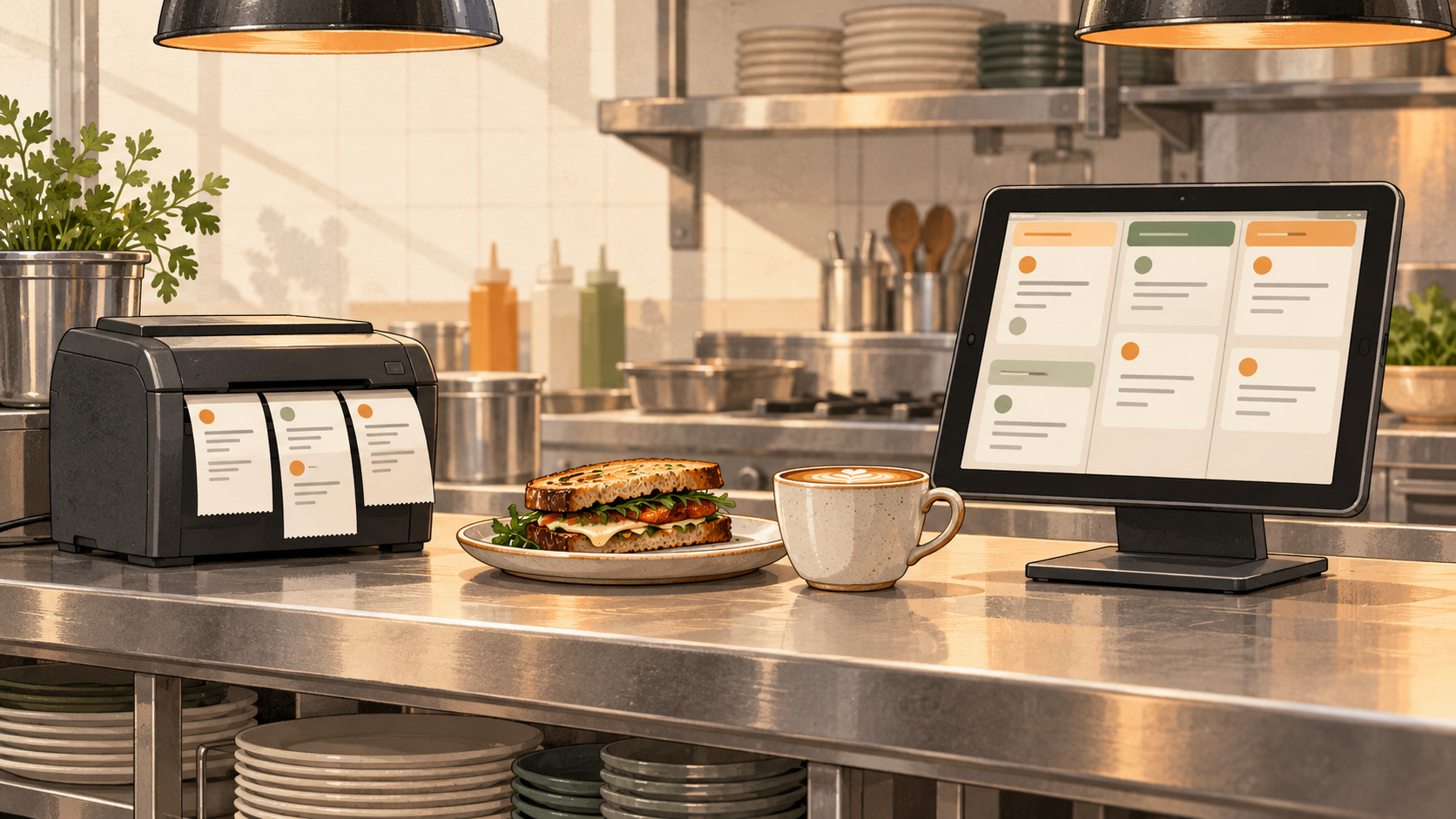
A kitchen display system, often shortened to KDS, presents kitchen orders on a screen. A kitchen printer produces a physical ticket that the team can place on a rail or carry through a packing process. The details depend on your software, hardware and configuration.
Start by watching a normal service. Where does someone have to ask what an order needs, copy a note, or check whether another station is finished? Write down those moments. Buying a new display will not, by itself, decide who owns the final bag check.
Use these three options as starting points for a demonstration:
- Paper-led workflow: worth testing when the team needs a physical ticket at the pass or attached to the packing process. Check ticket legibility, placement and reprint handling.
- Screen-led workflow: worth testing when staff need a shared view of the queue or separate station views. Check visibility from actual working positions and how completion is recorded.
- Combined workflow: worth testing when preparation happens on screens but packing still needs paper. Define which record controls preparation so the same order is not made twice.
These are workflow choices, not promises of faster service or fewer errors. Judge them against your own test orders.
Map the whole order path first
List the channels you actually use: counter, website, branded app, kiosk and any other ordering services. Beside each channel, record where the order appears, who acknowledges it and where the kitchen receives it.
Then follow one mixed order. For example, a café could use a sandwich, a hot drink and a pastry. Which station sees each item? Who sees the complete order? Who checks that all three items reach the correct guest?
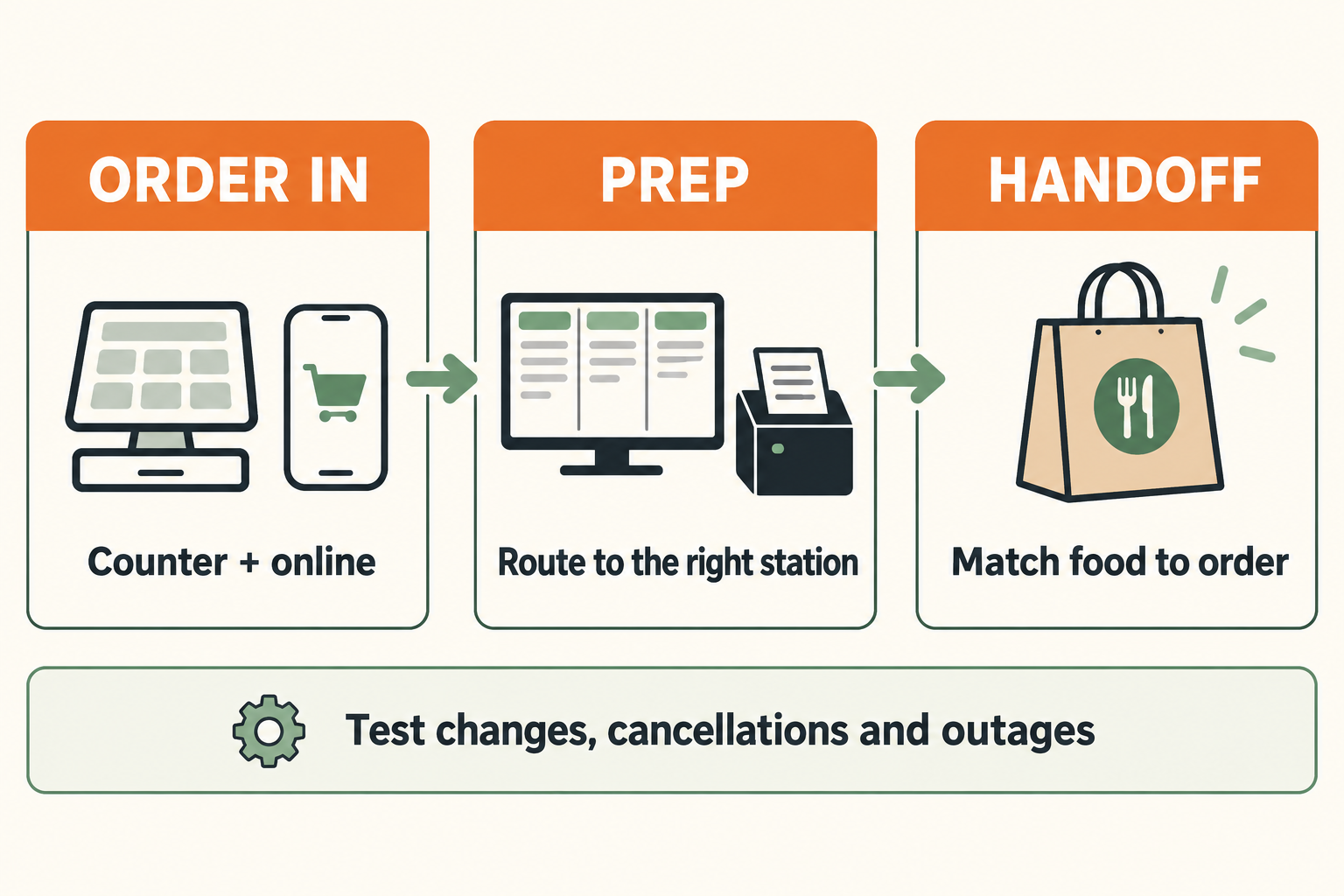
Conceptual test workflow. Confirm the actual routing available in your setup.
An integration name alone does not answer these questions. Ask the provider to demonstrate the complete path with your menu, locations and order types. Keep any existing working process until the replacement passes that test.
Run five tests with your real menu
Use a provider-approved test environment or an agreed quiet-service test. Make sure the team knows these are test orders and how they will be recorded or cancelled.
- A straightforward order: send one familiar item from each channel. Confirm the right location receives it once, with a recognisable order reference.
- A modified order: add an available size, extra or removal. Ask the person preparing it to read the ticket or screen from their usual position. Check that the modifier belongs to the right item.
- A mixed-station order: combine food and drinks. Watch how the team knows the whole order is ready rather than assuming one completed station means everything is finished.
- A changed or cancelled order: ask the provider to show supported edits and voids. Confirm how kitchen staff distinguish the current version from an earlier printout or screen state.
- A recovery scenario: have the provider demonstrate a safe, agreed interruption test outside service. Record how the team recognises a stale queue and reconciles orders after recovery.
Write down what happened, not just whether a feature exists. A useful acceptance note might read: “The drink station saw its item, and the packer could match it to the sandwich using the same order reference.”
Treat outages as a separate buying question
Do not assume a printer is automatically an offline backup. Whether devices can communicate depends on the system and the type of disruption.
For example, Toast’s KDS offline documentation distinguishes a local network disruption from an internet or cloud-service outage. Its local-sync behaviour depends on an eligible local hub and configuration; online orders have separate limitations. That is a product-specific example, not a promise about another system.
Ask your provider four practical questions: What still works if the internet connection fails? What changes if the local network fails? How will staff know the queue may be stale? How do we reconcile orders when service returns?
Agree on a written fallback with a named shift lead. Include who checks incoming channels and how the team prevents duplicate preparation during recovery. Do not unplug equipment during a live rush to find out.
Compare the complete setup, not just the device
Request an itemised quote in Canadian dollars. Ask which software, screens, mounts, printers, network work, installation, training and support are included. Confirm applicable taxes, ongoing fees and any cancellation or replacement terms rather than assuming them.
Walk the kitchen with the proposed equipment locations. Can staff read the screen without blocking a work area? Where will paper tickets go? Who stocks consumables, cleans equipment according to its instructions and handles a failed device?
If your team works in more than one language, demonstrate the actual item names, modifiers and interface they will use. Do not infer language support from the sales presentation.
What to ask Menuro to demonstrate
Menuro’s kitchen display page describes station views based on menu categories, visible add-ons and special requests, and tickets that can be marked ready. It also describes printing on arrival or completion. Its internet-disconnection warning says orders may be out of date until reconnection. Ask to see those behaviours with your workflow.
Keeping an existing POS? Menuro’s POS integration page lists Clover, Square and Toast. Confirm your exact configuration and demonstrate the route from an online order to the kitchen; a listed integration is the start of that conversation.
For the customer-facing side of the same test, use our online ordering menu checklist. A clear kitchen handoff starts with an order the guest can place accurately.
Make the decision with the people on shift
Have the person taking orders, someone preparing food and the person packing or handing it over review the test together. Choose a setup only after each role can explain where an order appears, how changes are recognised and who confirms it is complete.
Keep a short launch checklist: confirmed routing, readable modifiers, a clear final handoff, an agreed outage plan and one person responsible for support. Review it after the first busy services and adjust the process based on what the team observed.
Want to compare a screen, printer or combined workflow for your restaurant? Book a Menuro demo. Bring your current POS, ordering channels, station layout and a few representative orders. That gives the discussion something concrete to test.